
Set up the chat agent
Put an AI chat agent on your website so visitors get instant answers around the clock and reach your team the moment a person is needed.
The chat agent answers your website visitors instantly. It resolves questions on its own — even outside opening hours — and hands the conversation to your team the moment a person is needed. Visitors reach it through a chat button in the corner of your site, without ever leaving the page.
Every chat becomes a ticket in your inbox, just like email, so you keep the same overview.
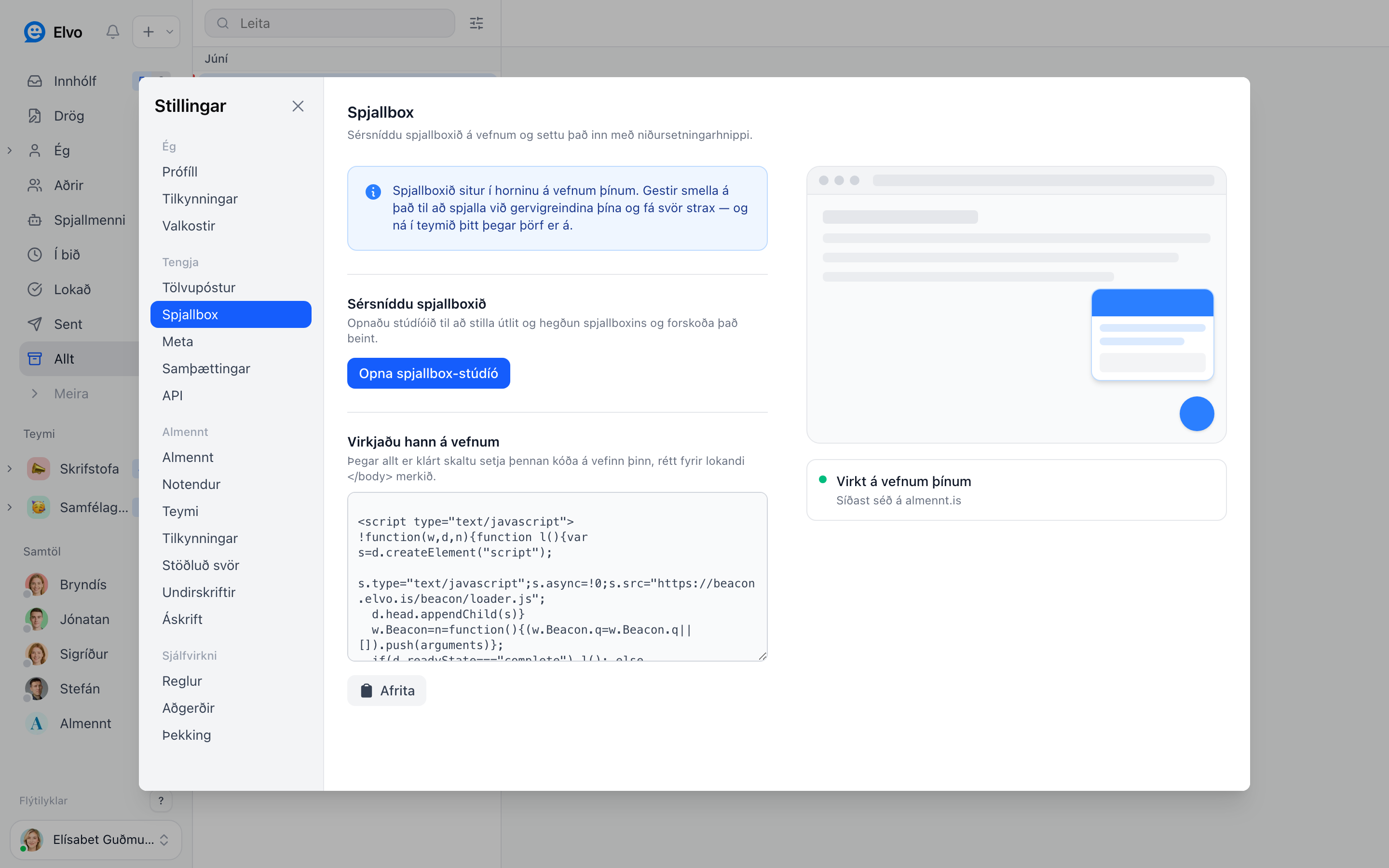
1. Customize the agent#
Open Settings → Chat agent and click Open studio. There you set:
- Behavior — the greeting visitors see, whether the AI answers first, and when the conversation goes to your team.
- Appearance — the color, position, and label of the chat button so it matches your site.
You can preview your changes live in the studio before publishing them.
2. Put it live on your site#
Copy the snippet under Add it to your site and paste it into your website, just before the
closing </body> tag. The same code works on every page. As soon as it's in place, the chat agent
goes live.
Tip
Using WordPress, Wix, or Squarespace? There's usually a "custom code" or "footer scripts" field where you paste the snippet without touching your theme.
3. Keep track#
Once the chat agent is live you'll see Live on your site and when it was last used. After that, every chat arrives as a ticket in your inbox and you answer it like any other ticket.
4. Recognize logged-in customers (optional)#
Do your customers log in on your website, for example to a customer portal? Then the chat agent can know who they are. Each chat shows the customer's name, email and company from the first message, so your team does not need to ask who they are, and can reply by email if the customer leaves the chat.
This is a small job for your web developer. Send them this section.
What the developer does#
- On pages where a user is logged in, call
identifyafter the chat snippet:
Beacon('identify', {
  userId: 'usr_123',             // stable id in your system (optional)
  email: 'user@example.com',
  name: 'Jón Jónsson',
  company: 'Fyrirtæki ehf.',      // optional
  attributes: { customerNumber: '1234' }, // optional, up to 20 values
  hash: '<signature from your server>'
});- Make the
hashon your server, never in the browser. It is an HMAC-SHA256 (lowercase hex) ofuserId + "\n" + email, or of the email alone when you send nouserId, signed with the signing key:
// Node.js
const subject = user.id ? user.id + '\n' + user.email : user.email;
const hash = crypto.createHmac('sha256', SIGNING_KEY).update(subject).digest('hex');
// C# / .NET
var subject = string.IsNullOrEmpty(userId) ? email : userId + "\n" + email;
using var hmac = new HMACSHA256(Encoding.UTF8.GetBytes(signingKey));
var hash = Convert.ToHexString(hmac.ComputeHash(Encoding.UTF8.GetBytes(subject))).ToLowerInvariant();Where the signing key is#
An admin finds it in the studio under Settings → Chat agent → Open studio → Logged-in users. Only admins can see it. Send it to the developer in a safe way, and keep it only on the server.
Show the chat only to logged-in users#
Is the chat only for your customers, for example inside a customer portal? Turn on Only show to logged-in users in the same place. The chat button then only appears after identify has run with a valid hash, so visitors on the open website do not see it, and Elvo refuses chats and messages from anyone who is not identified. When the user logs out, call Beacon('identify', null) or reload the page, and the chat button disappears.
Good to know
- Sign
userIdandemailexactly as you send them: same text, same case, no extra spaces. If they do not match, the chat ignores the identity and the visitor stays an anonymous guest. - Only call
identifywhen someone is logged in. - The chat agent's AI also sees the
company,planandattributesyou send, for exampleattributes: { role: 'admin' }, so it can answer an admin as an admin. OnlyuserIdandemailare signed, so the AI treats these other values as unverified: they help it fit the answer to the person, but never make it do or confirm anything on their account. Do not send anything you would not show the user themselves. - You can test on a test site or on localhost first: log in, open the chat and send a message. The chat in Elvo then shows the person's name instead of a guest.
FAQ#
Does the AI answer automatically? Yes, if you've set up a knowledge base. Otherwise the chat goes straight to your team.
What happens outside opening hours? The AI keeps answering. If it can't resolve the request, it collects in your inbox and waits for you the next morning.
Can visitors start a chat anonymously? Yes. You can ask for an email if you want to be able to follow up later.