
Contacts
See who the customer is, previous interactions, and information from connected systems, right beside the ticket.
When you open a ticket, the right panel shows who the customer is: name, email, channel, and previous interactions. That keeps the context at hand without looking elsewhere.
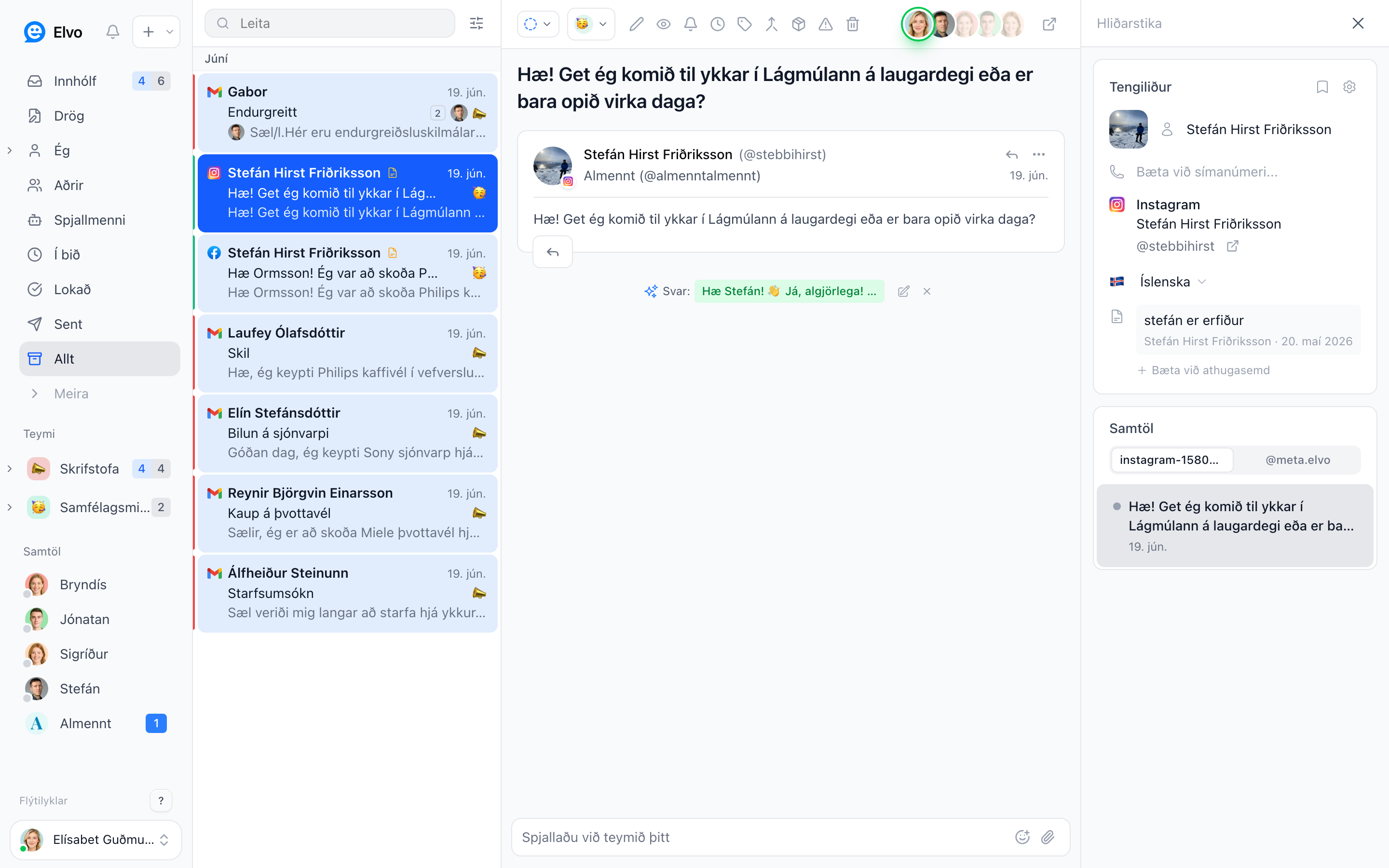
The contact in the ticket#
In the right panel you see the contact's details and can add a name, phone number, and notes. The customer's previous tickets also appear, so you see the whole history.
Information from connected systems#
If you've connected integrations (e.g. Shopify or accounting), the relevant data — orders, shipments, or invoices — appears right in the panel.
Contacts and customers#
Elvo distinguishes two things:
- A contact is someone who got in touch, e.g. an email address that wrote in or a chat visitor. Contacts are created automatically when a ticket arrives, including when you import older history.
- A customer is a company or an individual you serve, often with a kennitala. One customer can have many contacts, e.g. a company whose staff write to you.
In Customers (in the user menu), Companies and Individuals list customers. Without a customer lists contacts that aren't linked to any customer yet.
Filling the customer list#
Customers are created in four ways:
- Automatically from email. A sender on a company domain (e.g.
@terra.is) joins the company "Terra", and everyone writing from the same domain joins the same company. A Gmail, Hotmail etc. sender becomes an individual. This covers imported history too. Elvo skips your own domain, no-reply senders and mail that ends up in spam, and never touches a contact that is already linked, a contact you unlinked, or a domain with a customer you created yourselves. The company name comes from the domain and you can rename it. Set it in Settings → Custom fields → Automatic customers: companies and individuals, companies only, or off. - By hand. Open a ticket or contact, choose Link customer in the right panel, and search for a customer or choose New customer. With a kennitala, Elvo works out whether it's a company or an individual.
- Through the chat widget. If your website identifies logged-in users with
identify(see Chat agent),companybecomes a company customer and the contact is linked to it. - Through the API. If your customer records live elsewhere (e.g. accounting or a CRM), a developer can create customers and link contacts to them with the API.
FAQ#
Can I hide the contact panel? Yes — click the panel icon at the top right to open or close it.
Are notes on a contact visible to the customer? No, they're internal.
Why is a contact still under Without a customer? Automatic customers is off, the sender is on your own domain or a no-reply address, you unlinked them, or their domain already has a customer you created yourselves. Link them by hand then.