
Integrations
Connect Elvo to other systems such as accounting, commerce, bookings, CRM, Slack, Teams and knowledge tools, so customer information appears right in the ticket.
Integrations connect Elvo to the other systems your company uses, so data about the customer appears right beside the ticket and the AI can use it in replies. You see orders, shipments, or invoices without switching windows.
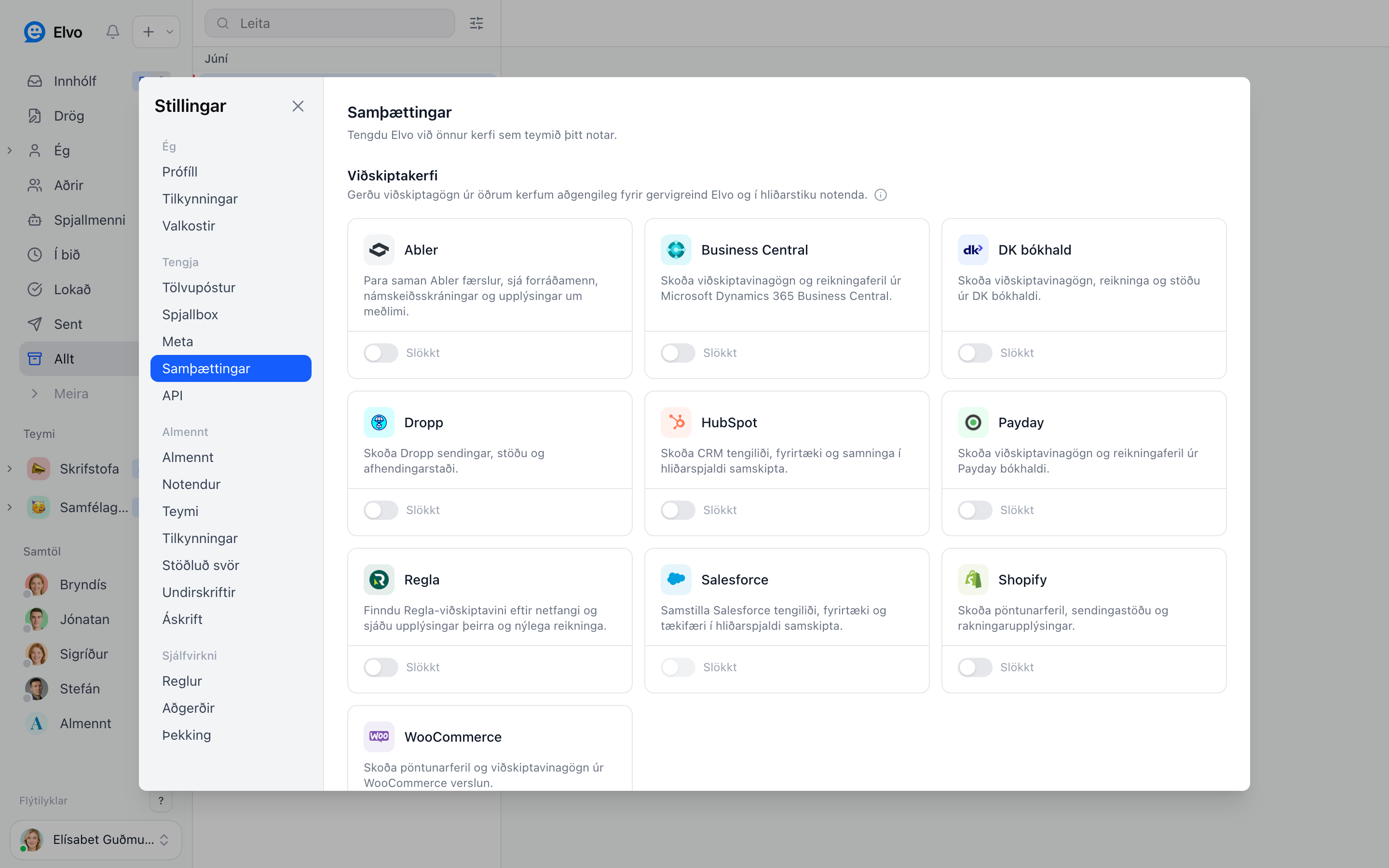
Connect an integration#
Open Settings → Integrations and turn on the system you want to connect. Follow the instructions to grant Elvo access. Once connected, the relevant customer information appears in the right panel when you open a ticket.
Commerce and shipping#
- Shopify — see the customer's order history, shipping status, and delivery details right in the ticket.
- WooCommerce — the same order information for WooCommerce stores.
- Dropp — see Dropp shipments, their status, and delivery locations without opening Dropp.
- Pósturinn — the AI looks up Pósturinn tracking numbers that customers mention (see below).
- LS Retail — see the customer's record, their open orders, and their invoices from LS Central, whether it runs in the cloud or on the company's own server.
Shopify: cancel and refund orders from the ticket#
Besides showing orders, Shopify lets your team act on an order without leaving Elvo. Open the ticket, expand an order under the Shopify tab in the right panel, and choose:
- Cancel and refund (or Cancel order when nothing has been paid) — cancels the order in Shopify, refunds the payment to the original payment method, and restocks the items. The customer gets Shopify's cancellation email.
- Refund in full — refunds the whole order, shipping included, but leaves the order open. The customer is notified.
Elvo always asks you to confirm first, since these changes can't be undone from Elvo.
Setup: the actions need the write_orders scope on the Shopify app you connected (reading orders only needs read_orders). In Shopify, open the app under Settings → Apps and sales channels → Develop apps, add write_orders under Configure Admin API scopes, and reinstall the app. If the scope is missing, Elvo tells you when you try an action — nothing else breaks.
Safeguards:
- The buttons only appear on orders of the ticket's own customer. Elvo checks on the server that the order's email matches the customer on the ticket, and refuses if it doesn't — so an order can never be cancelled from the wrong conversation. If the contact's email was changed after the customer wrote, the action is refused too.
- Cancelled, refunded, and voided orders show no buttons.
- Every action leaves an internal note on the ticket saying who did what (e.g. which order was cancelled), so colleagues can see it in the timeline.
Pósturinn#
When a customer mentions a Pósturinn tracking number (for example RR123456785IS), Elvo looks up the parcel and gives the AI its latest status when it drafts a reply — so it can answer "where is my parcel?" without anyone opening the tracking page.
- Open Settings → Integrations → Pósturinn.
- Turn it on and click Save connection. No key or account is needed: Pósturinn's tracking is public to anyone who has the tracking number.
Elvo only reads tracking status for numbers that appear in the conversation. It has no access to your business account with Pósturinn and can't create shipments.
Accounting and invoices#
- DK bókhald — see the customer's history, invoices, jobs, and balance from DK. Open jobs show first with their status (for example in progress, on hold, ready), so the AI can answer "is my car ready?" from DK.
- Payday — see invoices and history from Payday.
- Regla — find Regla customers by email and see their details and recent invoices.
- Business Central — see history and invoices from Microsoft Dynamics 365 Business Central, whether it runs in the cloud or on the company's own server (on-prem, user name and Web Service Access Key).
CRM#
- HubSpot — see the customer's CRM data, company, and deals from HubSpot.
- Salesforce — sync contacts, companies, and opportunities from Salesforce into the right panel.
Membership and course systems#
- Abler — match Abler records and see guardians, course registrations, and member details.
Tours and bookings#
Bókun#
See the customer's tour and activity bookings from Bókun right beside the conversation: confirmation code, date, status, participants, pickup, and payment status. When a customer quotes a confirmation code (e.g. "Can I move booking ICT-8582?"), the AI looks that booking up and uses its status when it drafts a reply.
- In Bókun, go to Settings → Connections → API keys and create a new key. API access requires the Bókun PRO plan.
- Give the key permission to read bookings.
- In Elvo, open Settings → Integrations → Bókun, paste the access key and the secret key, and save.
Bookings are matched to the customer by email: Elvo only shows bookings whose customer email is the same as the contact's, and a confirmation code from someone else's booking is never revealed. Elvo only reads bookings — it never creates, changes, or cancels them.
Noona#
- In Elvo, open Settings → Integrations → Noona and click Connect.
- Sign in with a Noona user that has access to your company, and approve read access to customers, appointments, services and staff.
Elvo finds the customer in Noona by email, or by phone number for WhatsApp and phone contacts, and shows their upcoming and past appointments next to the conversation: service, staff member, date and time, status and price. The AI uses them when drafting replies. Elvo only reads from Noona; it never books, moves or cancels appointments.
Phone directory#
Já#
Shows the Já.is listing for the customer's phone number in the right panel — name, kennitala (partly hidden), address, and whether the number is marked against marketing (bannmerking). It can also fill in the name of contacts who only left a phone number, for example from WhatsApp or a phone call.
Each lookup is billed by Já on your own Já Gagnatorg plan — not by Elvo.
- Create a Já Gagnatorg account at ja.is/gagnatorg. The 30-day trial is free.
- Copy your API key from Gagnatorg.
- In Elvo, open Settings → Integrations → Já, paste the key, and choose the settings below.
Settings:
- Auto-fill names (off by default) — when a contact arrives with only a phone number, Elvo fills in the name from Já if exactly one person is listed for the number. A name someone has typed is never overwritten. For phone calls, a caller is looked up only from their second conversation, since caller ID can be spoofed.
- Daily lookup cap — Elvo stops looking up Já once this many billed lookups have been made that day (100, 300, 1,000, or 3,000; default 300). This protects you from surprise costs.
- Show full kennitala — by default the last four digits of a kennitala are hidden.
To save lookups, Elvo only looks up Icelandic numbers and remembers each contact's result for 7 days before it asks Já again.
Notifications#
Post Elvo events to your team's chat so everyone sees new conversations without having Elvo open. Each message has a button that opens the ticket in Elvo. Both integrations live under Settings → Integrations, in the Notifications, knowledge and automation group, and you can add more than one connection (for example one channel per team).
What to post — every connection picks one of:
- New conversations (default)
- New conversations and assignments
- Everything — also customer replies and resolved conversations
Message text is cut to a short excerpt, and customer replies are only posted with Everything.
Which conversations — a channel may be read by people who can't see every team's tickets in Elvo, so the rules are strict:
- A connection bound to a team posts only that team's conversations.
- A connection with no team posts only conversations that have no team — unless you set All teams to Yes. Then every team's conversations are posted, so everyone in the channel sees tickets they might not see in Elvo. Only do that for a channel the right people read.
Slack#
- Open Settings → Integrations → Slack.
- Easiest: click Add to Slack and pick the channel. Optionally pick a Team first. Replies in a message's thread in Slack then come back to Elvo as internal notes on the ticket — never to the customer. For a private channel, also type
/invite @Elvoin the channel. - Or use a webhook (post-only): in Slack, open Tools & settings → Manage apps, create an app (or use an existing one), turn on Incoming Webhooks, and click Add New Webhook to Workspace. Choose the channel and copy the webhook URL (
https://hooks.slack.com/services/…). - Paste the URL into Elvo, choose What to post, pick a Team (or set All teams), and save.
With a webhook, Elvo can only post; thread replies don't come back to Elvo.
Microsoft Teams#
Teams uses the Workflows app to receive messages.
- In Teams, open the channel, click … next to its name, and choose Workflows.
- Pick the template Post to a channel when a webhook request is received, name it (e.g. Elvo), check the team and channel, and click Add workflow.
- Copy the URL Teams shows when the workflow is created (it's on logic.azure.com or powerplatform.com).
- In Elvo, open Settings → Integrations → Microsoft Teams, paste the URL, choose What to post, pick a Team (or set All teams), and save. The URL is stored encrypted.
Nothing is posted until the next matching event. Replies in Teams don't come back to Elvo.
Knowledge#
Use pages and documents you already keep in Notion, Confluence or SharePoint as AI knowledge. Elvo mirrors the pages into Settings → Knowledge and keeps them in sync, so the AI drafts replies from the current version.
How syncing works, for both:
- Elvo syncs every hour; click Sync now under Settings → Knowledge to sync right away.
- New and edited pages are picked up on the next sync. A page deleted at the source is removed after it has been missing from two syncs in a row.
- Synced pages can't be edited in Elvo — edit them at the source.
- To keep one page out, remove it in Settings → Knowledge. Elvo remembers that and never syncs it again.
- Up to 500 pages per connection. Disconnecting removes all the synced pages from Knowledge.
Notion#
- Open notion.so/my-integrations and create a new internal integration for your workspace. Read content access is enough.
- Copy the Internal Integration Secret (starts with
ntn_). - In Elvo, open Settings → Integrations → Notion, paste the secret, and save.
- In Notion, open each page Elvo should learn from, choose ⋯ → Connections, and add the integration. Sub-pages are included.
Elvo only sees pages you have shared with the integration this way — nothing else in your workspace.
Confluence#
- Sign in at id.atlassian.com/manage-profile/security/api-tokens with an account that can read the spaces, and create an API token.
- In Elvo, open Settings → Integrations → Confluence and enter your site URL (e.g.
https://your-team.atlassian.net), the account's email, and the API token. - Optionally list the space keys to include, separated by commas (e.g.
HELP, FAQ). Leave the field empty to include every space the account can read.
Personal spaces are left out when you leave the space keys empty. To include one, list its key (e.g. ~anna). Elvo sees exactly what the account you connected can see, so a dedicated read-only account is a good idea.
SharePoint#
- In Elvo, open Settings → Integrations → SharePoint and click Connect.
- Sign in with a Microsoft 365 account that can read the site, and approve read access to sites and files. Depending on your organization's settings, a Microsoft 365 administrator may need to approve this the first time.
- Open Settings → Knowledge and enter the site address (e.g.
https://contoso.sharepoint.com/sites/Support). Optionally enter a folder in the site's Documents library to sync only that folder.
Elvo reads Word (.docx), PDF, text, Markdown and HTML files up to 20 MB from the site's Documents library. Elvo sees exactly what the signed-in account can see, so a dedicated account with read access to the right site is a good idea. Connecting SharePoint doesn't affect a Microsoft 365 mailbox connected to Elvo.
Car rentals#
- Caren — see the customer's rental bookings from the Caren booking system — booking number, dates, car, and status — right in the panel beside the ticket.
To connect Caren, create an API key in Caren under Rental Settings (we recommend a dedicated API user for Elvo). Then open Settings → Integrations → Caren in Elvo and enter the API key, username, password, and RentalId. Elvo only reads data from Caren and never changes anything there.
Cars and workshops#
Ökutækjaskrá (vehicle registry)#
When a plate number appears in a conversation (for example AB123, AB 123 or AB A12) or a VIN, Elvo looks the vehicle up in Samgöngustofa's public vehicle registry on island.is. The vehicle shows in the side panel with make, colour, status (in use, out of use, deregistered), first registration, next main inspection and weight, and the AI sees it when drafting a reply.
- Open Settings → Integrations → Ökutækjaskrá.
- Click Connect. No key or account is needed.
Elvo reads plate numbers from the ticket subject and the customer's recent messages, but only when the conversation talks about a vehicle (for example "bíllinn", "bílnúmer", "skoðun" or "car"), so flight numbers, product codes and booking codes are not mistaken for plates. Owner details are not included, because they are not public. Custom plates (e.g. BJB1) are not recognised automatically, but a VIN always works.
Tip
An integration makes AI replies more accurate, since the AI can reference real-time data (e.g. order status) when drafting.
Zapier#
Connect Elvo to thousands of other apps with Zapier, without writing code. Open the Elvo app for Zapier to add it to your Zapier account (it isn't listed in Zapier's app directory yet).
- Triggers: new conversation, new customer message, conversation assigned, conversation resolved, new customer.
- Actions: add an internal note, update a conversation (status, assignee, team, tags), create a conversation, create or update a contact.
- Searches: find a contact by email, find a conversation by number.
To connect, an admin creates an API token with the Write scope under Settings → API & agents and pastes it into Zapier. Each Zap that starts from an Elvo trigger uses one of the organization's webhooks.
Custom integration#
If your system isn't on the list, a developer can connect it with a custom integration. Elvo calls an HTTPS endpoint you host with the customer's email and latest message, and shows the response in the sidebar. The AI also sees it when it drafts replies. Set it up under Settings → Integrations → Custom integrations; Elvo generates a setup brief you can send to your developer.
Buttons (actions)#
A custom integration can also offer buttons in the sidebar, such as "Hold Fri 17:00". When an agent clicks one, Elvo sends the action to an action URL you host and records on the conversation who ran it and what happened.
- An admin sets the action URL with the Actions button next to the integration under Settings → Integrations. Without it, no buttons appear.
- Buttons only appear in an open conversation and only work for that conversation.
- A person always clicks. The AI never runs actions.
FAQ#
Do vendors charge for their API? Some do: Bókun API access needs the Bókun PRO plan, and Já bills each lookup on your Já plan.
Is your system missing? You can also connect your own systems via the public API.
Who can connect integrations? Admins — see Users & roles.