
Integrations
Connect Elvo to other systems — accounting, commerce, and CRM — so customer information appears right in the ticket.
Integrations connect Elvo to the other systems your company uses, so data about the customer appears right beside the ticket and the AI can use it in replies. You see orders, shipments, or invoices without switching windows.
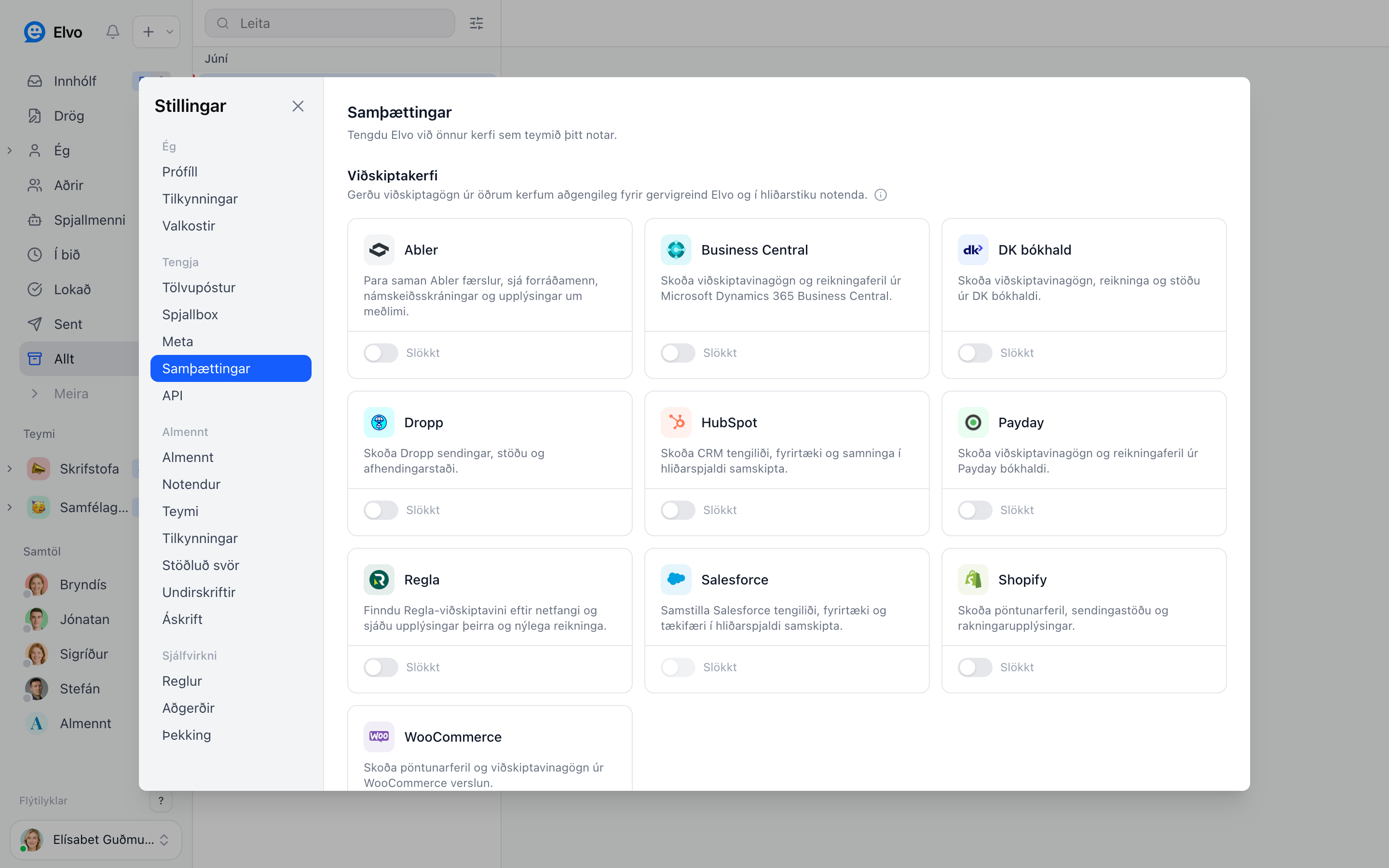
Connect an integration
Open Settings → Integrations and turn on the system you want to connect. Follow the instructions to grant Elvo access. Once connected, the relevant customer information appears in the right panel when you open a ticket.
Commerce and shipping
- Shopify — see the customer's order history, shipping status, and delivery details right in the ticket.
- WooCommerce — the same order information for WooCommerce stores.
- Dropp — see Dropp shipments, their status, and delivery locations without opening Dropp.
- LS Retail — see the customer's record, their open orders, and their invoices from LS Central, whether it runs in the cloud or on the company's own server.
Accounting and invoices
- DK bókhald — see the customer's history, invoices, and balance from DK.
- Payday — see invoices and history from Payday.
- Regla — find Regla customers by email and see their details and recent invoices.
- Business Central — see history and invoices from Microsoft Dynamics 365 Business Central, whether it runs in the cloud or on the company's own server (on-prem, user name and Web Service Access Key).
CRM
- HubSpot — see the customer's CRM data, company, and deals from HubSpot.
- Salesforce — sync contacts, companies, and opportunities from Salesforce into the right panel.
Membership and course systems
- Abler — match Abler records and see guardians, course registrations, and member details.
Car rentals
- Caren — see the customer's rental bookings from the Caren booking system — booking number, dates, car, and status — right in the panel beside the ticket.
To connect Caren, create an API key in Caren under Rental Settings (we recommend a dedicated API user for Elvo). Then open Settings → Integrations → Caren in Elvo and enter the API key, username, password, and RentalId. Elvo only reads data from Caren and never changes anything there.
Tip
An integration makes AI replies more accurate, since the AI can reference real-time data (e.g. order status) when drafting.
FAQ
Which plans include integrations? Lítill includes one standard integration and Vöxtur unlimited standard integrations. Premium integrations (DK Plus, Business Central, LS Retail and a custom integration) are on Stór and above. See Billing & plans.
Is your system missing? You can also connect your own systems via the public API.
Who can connect integrations? Admins — see Users & roles.